.svg)
How Odoo 20's Timesheet Assistant turns your everyday computer activity into timesheet entries you only have to approve.
Reported By
Mithun Mohan
The problem every working team knows
Ask anyone who bills clients by the hour, or tracks what a project really costs, and they will tell you the same thing: filling in timesheets is the task everybody forgets. At the end of the day, or worse, the end of the week, people try to rebuild their schedule from memory. Meetings get missed. Quick calls vanish. Hours that were worked never get billed.
Odoo 20, the latest version of the popular business software, tackles this with a new feature called the Timesheet Assistant. You do not need to know Odoo to understand the idea, so this article explains everything from the beginning.
Two quick definitions
Odoo is business management software (often called ERP) that brings sales, accounting, inventory, projects and HR into one system. Companies of all sizes use it.
Timesheet is a record of how much time someone spent on which piece of work. It is used to invoice clients and to see whether projects are staying on budget.
What the Timesheet Assistant does
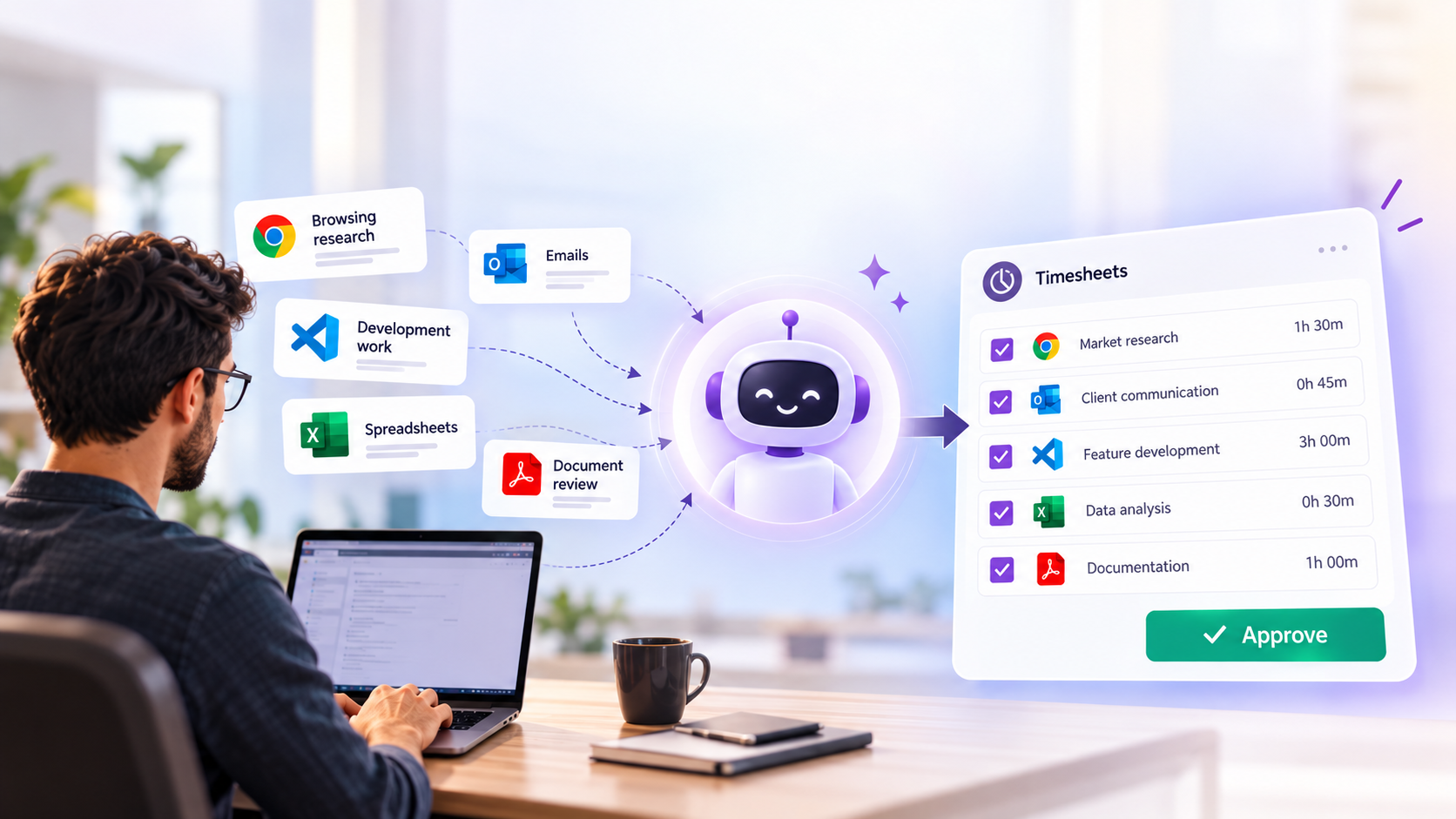
In one sentence: it watches which applications and websites you use during the day, guesses which project each piece of work belongs to, and offers you a ready-made list of timesheet entries. You review the list, fix anything that looks wrong, and click Create.
Nothing is added to your timesheet automatically. The assistant only suggests; you stay in control.
- 1. TrackApps and websites
- 2. MatchRules sort the activity
- 3. SuggestGrouped by project
- 4. ConfirmYou click Create
The four steps of the Timesheet Assistant. Steps 1–2 happen quietly in the background (together with your Odoo calendar and planning). Steps 3–4 are the only ones you do.
How it works behind the scenes
Tracking. The assistant relies on a free, open-source tool called ActivityWatch, installed on your computer. It notes which application or browser tab is active, and for how long. An optional browser extension (Chrome or Firefox) adds website-level detail.
Matching. Odoo then applies assistant rules. A rule is a small text pattern (technically a “regular expression”) that recognises an activity, such as a Google Meet call or work in a code repository, and labels it. Odoo ships with ready-made rules for Odoo itself, GitHub, Google Docs, Gmail, Google Meet and Discord. Once a rule fires, the activity that follows is attached to it until another rule fires.
Suggesting. Odoo combines these labelled activities with your events in the Odoo calendar and your planning, then assigns each suggestion to a project and task. It also learns from your past choices, so a suggestion that you assigned to a project once is likely to land there again.
Confirming. You open the Assistant screen, select one or more suggestions, adjust the details if needed, and click Create. They become normal timesheet entries.
Where to find it and how to set it up
The assistant lives inside the Timesheets app. Setup takes a few minutes per person.
- Switch it on. Go to Timesheets > Configuration > Settings and tick Timesheets Assistant. The timesheets must be recorded in hours and minutes (the “Encoding method” setting), otherwise the option is not available.
- Install the tracker. Open Timesheets > Assistant. Odoo walks you through installing ActivityWatch on your computer. Supported systems include Windows 10, macOS 10.15 and Ubuntu 22 or newer. The browser extension is optional.
- Connect it to Odoo. Copy your Odoo address into ActivityWatch's settings (this tells it that your Odoo is allowed to read its data), then click Test connection.
- Work as usual. Tracking starts automatically each day. Short stretches of less than a minute are ignored, and three minutes without keyboard or mouse activity count as a break.
- Review and create. At any point, open Timesheets > Assistant, tick the suggestions you want, edit if necessary, and click Create. Unwanted suggestions can simply be removed.
Rules in plain English: a worked example
Rules are what turn raw activity into something meaningful. Here is how a rule for customer video calls could look. The fields are the ones Odoo asks you to fill in.
| Field | Example value | What it means |
|---|---|---|
| Name | Customer Meeting | The rule's label |
| Pattern | meet - (.*)|https://meet.google.com | Recognises a Google Meet window or address |
| Template | Customer Meeting ($1) | Names the entry after the meeting title Odoo found |
| Always active | Yes | Keeps counting time even if you are not touching the keyboard, which is normal in a meeting |
| Project and task | Left empty | Each meeting may belong to a different customer |
What about privacy?
This is the first question most people ask, and the answer in Odoo's documentation is reassuring: all activity data is processed locally on your own device and is not shared with anyone, inside or outside your company. Suggestions stay private to you until you choose to turn them into timesheet entries. Only the entries you create become visible to your manager and the rest of the system.
A sensible rule for teams
Explain the feature to staff before switching it on. Because it is opt-in per computer and nothing is recorded in the company timesheet until the employee clicks Create, it works best as a memory aid, not as a monitoring tool.
Odoo 19 versus Odoo 20
Odoo 19 already supported timesheets through manual entries and timers. What changes in Odoo 20 is where the entries come from.
| Odoo 19 | Odoo 20 | |
|---|---|---|
| Logging time | You type entries or start a timer yourself | The assistant proposes entries; you confirm them |
| Source of information | Your memory and what you remember to enter | Computer and browser activity, plus Odoo calendar and planning |
| Project and task | Chosen by you every time | Matched by rules and by your previous choices |
| End-of-day effort | Rebuild the day from memory | Review a list and click Create |
| Setup | Nothing extra | Tick the setting and install ActivityWatch on each computer |
Who benefits, and how
- Employees spend less time on admin and stop worrying about forgotten hours.
- Managers see more complete timesheets, which makes project reports and planning more reliable.
- Finance and billing teams can invoice for time that would previously have gone unrecorded.
- Project-based businesses (consultancies, agencies, software teams) get a more accurate picture of what each project really costs.
Things to keep in mind
- It needs a one-time installation on each person's computer, so it suits desktop work better than work done mostly away from a computer.
- Suggestions are only as good as the rules behind them. Expect to adjust or add rules during the first weeks.
- Short, scattered tasks may need manual correction before you create the entry.
- It is a helper, not a replacement for judgement: people still decide what goes on the timesheet.
Conclusion
Timesheets have always asked people to remember the past. The Odoo 20 Timesheet Assistant flips that around: the system keeps a private record of your day, and you simply approve what is accurate. For any team that bills by the hour or manages projects, that is a practical improvement, and it does not require anyone to understand the software underneath.
Sources: Odoo 20 documentation (Timesheet assistant, odoo.com/documentation); Odoo 20 release notes; partner write-ups from Octura Solutions and Target Integration.