.svg)
Odoo Offline Mode Explained: Features, Benefits and Use Cases
Reported By
Athul
A salesperson is halfway through updating an opportunity when the train enters a tunnel. A technician finishes a job in a basement plant room where the signal never reaches. A warehouse supervisor walks into a cold store and the Wi-Fi drops. In each case the work is still there to be done, but the software stops cooperating.
Cloud software assumes a reliable connection, yet not all work happens in an office with a router next door. When the network fails, people improvise with paper notes, photos and messages to themselves, and details get lost or typed twice. Odoo Offline Mode is built for these moments. This article explains how it works, who benefits most and where its limits are, based on Odoo's official documentation.
What Is Odoo Offline Mode?
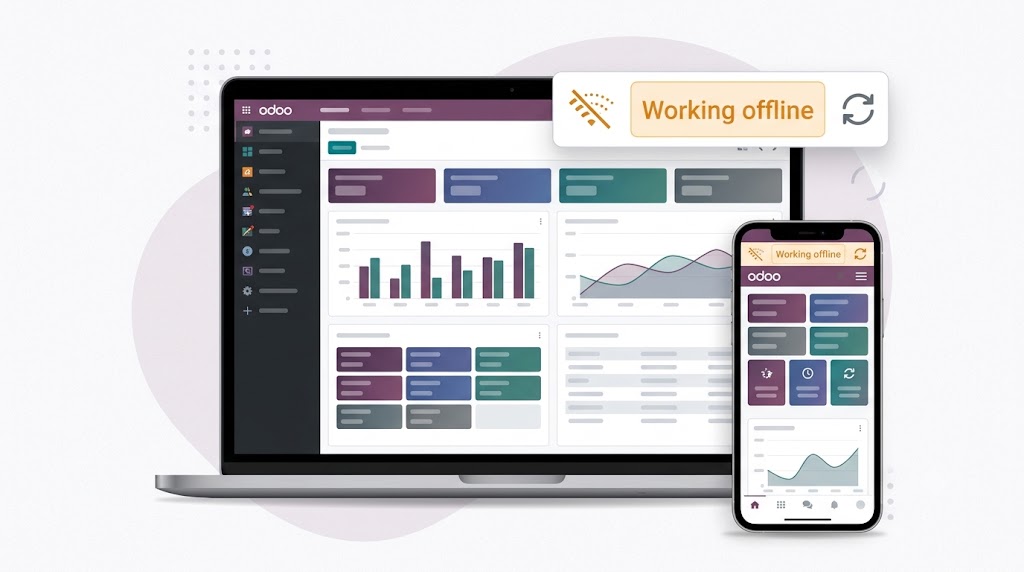
Odoo Offline Mode is a built-in capability that keeps parts of Odoo usable when the browser loses its connection. Its goal is business continuity when connectivity is unreliable or unavailable, such as while commuting or working in places with poor coverage. In practice:
- As soon as the connection drops, a Working offline button appears in the database header.
- Views and records you opened while online can be reopened, and earlier searches can be repeated.
- Features that need the server are grayed out instead of failing halfway.
- From Odoo 19.3, records can also be edited, deleted, archived, unarchived or created, provided certain conditions are met.
Which versions support it? In Odoo 19.0 to 19.2, offline mode is read-only: you can reopen records you have already viewed, but not change them. From Odoo 19.3 onward, you can create and edit records offline, and the changes sync automatically. Check your database version before planning a rollout.
Odoo is clear about the scope: this is a solution for short-term interruptions, not a way to run a standalone ERP for days without a connection.
How Odoo Offline Mode Works
It remembers what you open. Odoo stores views and records on your device as you use them online. That is why you should open the views and records you expect to need before heading into a low-coverage area.
It has a size limit. Odoo allocates a maximum of 2 GB for offline data. When the limit is reached, the oldest data is removed first. A hard refresh (Ctrl+F5, or Cmd+Shift+R on a Mac) clears all locally stored data, so avoid it when you expect to be offline.
Changes go into a queue. Where offline editing is supported, changes wait in a temporary queue on your device. Click Working offline to see what is pending. Each record is tagged Created, Edited, Archived or Unarchived, and you can discard changes made in error.
Sync is automatic. When the connection returns, queued changes sync to your database. There is nothing to export and nothing to retype.
Two rules decide what you can do. You can edit, delete, archive or unarchive a record only if you opened it while online. You can create a record only if you have created one of the same type while online. Attachments and images can be opened offline but not uploaded or deleted.
Benefits for Your Teams
Field service
Technicians work in plant rooms, on rooftops and at remote sites, exactly where signal disappears. A technician who opened the day's jobs before leaving the depot can reopen them on site, update fields and add notes. Everything syncs when the device reconnects, so the office sees the update without anyone retyping it from a notebook in the van.
Sales
Sales work is mobile by nature. A representative who opens key accounts and open opportunities before a trip can review customer information and update the pipeline in a tunnel or on a flight. With Odoo CRM offline, new opportunities can be created too, and the sales manager's forecast reflects what actually happened on the road.
Warehouse
Metal racking, cold rooms and uneven Wi-Fi make warehouses famous for dead zones. With Odoo warehouse offline access, staff can keep working with records they have already opened, such as products, locations or transfers. Actions that need the server stay grayed out until the connection returns, so test your most common warehouse tasks offline in your own database and decide which steps staff should finish once they are back online.
A Real-World Use Case
Consider a construction company that manages projects in Odoo. A site supervisor visits a building site on the edge of the city, where mobile coverage is weak. This is an illustrative scenario, not a customer case study.
Before leaving the office she opens the project, the task list and the two open issues she expects to review. On site the signal drops and the Working offline button appears. She updates progress on three tasks, edits the notes on a delayed delivery and creates a new task for a safety issue she spots.
When she is back in coverage, the queue syncs. The project manager sees the progress that afternoon, the safety task is assigned the same day, and nobody types up handwritten notes in the evening. No extra hardware or special process was needed, only the habit of opening the right records before leaving.
Limitations and Best Practices
Offline mode is useful because it is clear about its scope. Plan around these limits:
- Short-term interruptions only: treat it as a bridge, not a standalone ERP.
- Only records opened online are available: open the records, views and searches you expect to need before you travel.
- No uploading or deleting attachments: add files once you are back online.
- 2 GB of offline data: keep the working set focused on what the day needs.
- Custom modules: offline access applies to standard Odoo framework components, so test custom development before relying on it.
A few habits make the difference:
- Build the habit. Teach users to open what they need before they leave coverage.
- Review before you reconnect. Check the pending list under Working offline and discard anything made in error.
- Agree ownership of shared records. The documentation does not describe how competing edits to the same record are handled, so decide who updates what.
- Confirm your version. Offline editing and sync need Odoo 19.3 or later.
Conclusion
Connectivity problems are rarely dramatic. They are small interruptions that add up: an update that gets forgotten, a note that is written down twice, a customer record that is out of date by Friday. Odoo Offline Mode deals with them quietly. It will not turn Odoo into an offline system, but it keeps your team productive through the short gaps and brings their work back into the database when the connection returns.
If your people work in the field, on the road or in places with unreliable coverage, review which Odoo version you run and how your key workflows behave offline. Want help testing Odoo Offline Mode against your own processes? Get in touch with the Code-Ox team.