.svg)
Complete Guide: Odoo 17 Helpdesk + WhatsApp Integration

Reported By
Codeox Technologies
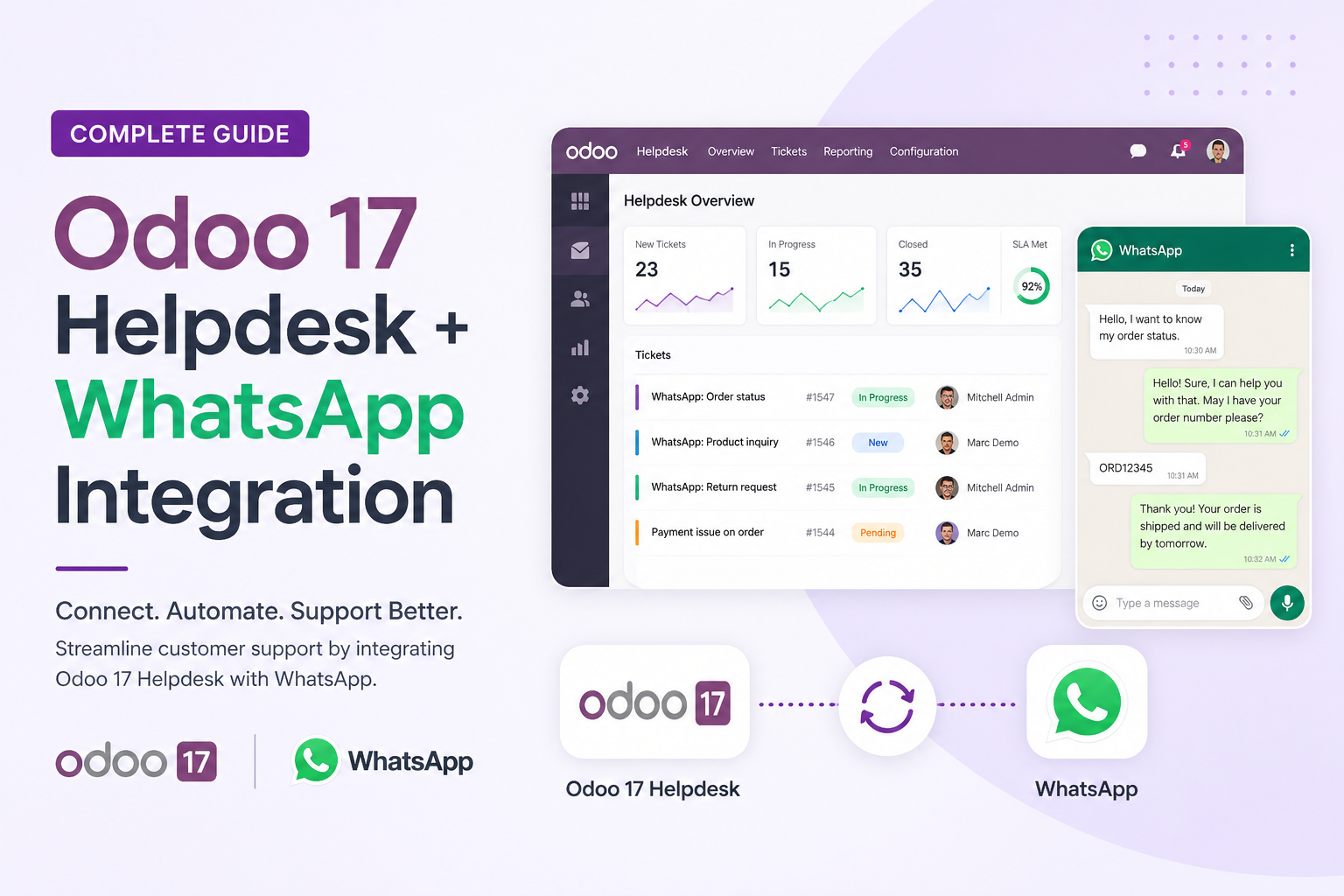
Setting up a customer support system that handles both email and WhatsApp in Odoo 17 Enterprise involves multiple moving parts — DNS records, email servers, webhooks, and API configurations. This guide documents the complete process, including every issue encountered and how it was resolved. Use it as a reference for your own implementation.
01. Understanding the Starting Point
Before configuring anything, audit the existing infrastructure. In a typical Odoo.sh setup with a custom domain on AWS Route 53, you'll likely find some pre-existing DNS records, possibly an active email service (like Google Workspace), and the Odoo instance itself. Understanding what's already in place prevents breaking existing functionality.
Key things to check during the audit:
- Where is the domain registered? — AWS Route 53, GoDaddy, Namecheap, etc.
- Are there existing MX records? — This tells you if email is already configured somewhere
- Is Google Workspace or Microsoft 365 active? — Check the DNS TXT records for verification entries
- What Odoo modules are installed? — Helpdesk may need to be installed fresh
Always check the MX records before planning your email strategy. If Google Workspace or Microsoft 365 is already active with real users, don't change the MX records — work with the existing email provider instead.
02. DNS Records — The Foundation
DNS (Domain Name System) is the internet's phonebook. If you're new to DNS, here's a quick primer on the record types you'll encounter:
A Record (Address Record)
Maps a domain directly to an IP address. Example: yourdomain.com → 145.79.210.135. When someone visits your domain, the browser goes to that IP.
MX Record (Mail Exchange)
Tells the internet where to deliver emails for your domain. If you see SMTP.GOOGLE.COM, emails go to Google's servers. If you want Odoo to handle email, you'd point this to Odoo's servers instead.
CNAME Record (Canonical Name)
Points one domain to another domain (like a redirect). Commonly used for subdomains: erp.yourdomain.com → your-instance.odoo.com.
TXT Records
Text records used for verification and email security. Common uses include SPF (email sender authorization), DKIM (email signing), and domain verification for Google/Meta.
SPF Record — Critical for Email Deliverability
If your domain doesn't have an SPF record, emails sent on its behalf may land in spam. When using both Google Workspace and Odoo.sh for sending, your SPF record should authorize both:
You can have multiple TXT records for the same domain, but only one SPF record. If you need to authorize multiple services, combine them in a single SPF record as shown above.
03. Email Integration Strategy
There are several approaches to handling email in Odoo.sh. The right choice depends on your existing infrastructure:
| Scenario | Best Approach | Complexity |
|---|---|---|
| No existing email service | Use Odoo.sh built-in mail + change MX records | Simple |
| Google Workspace active | Keep Google for email, connect to Odoo via IMAP | Medium |
| Microsoft 365 active | Keep M365, connect to Odoo via IMAP/OAuth | Medium |
| No email needed yet | Set up free Zoho Mail or Cloudflare email routing | Simple |
Connecting Google Workspace to Odoo
If Google Workspace is active, the recommended approach is to create a dedicated support email (e.g., support@yourdomain.com) and connect it to Odoo using IMAP for incoming and let Odoo.sh handle outgoing.
Create the support email in Google Admin
Go to admin.google.com → Users → Add new user. Create a dedicated account like support@yourdomain.com.
Generate an App Password
Enable 2-Step Verification on the support account first, then generate an App Password at myaccount.google.com/apppasswords. This 16-character password is what Odoo will use.
Configure Incoming Mail Server in Odoo
Go to Settings → Technical → Incoming Mail Servers → New. Use imap.gmail.com, port 993, SSL/TLS enabled, with the App Password.
Setting up a Gmail SMTP outgoing server in Odoo causes all modules (Sales, Invoicing, CRM) to send through it. This is usually not desired when you want different "from" addresses for different modules.
Odoo.sh has a built-in outgoing mail server — you don't need an external SMTP. Only configure the incoming IMAP server. For the outgoing, let Odoo.sh handle it natively. If you did create a Gmail SMTP, you can use the FROM Filtering field to restrict it to specific email addresses.
04. Helpdesk Module Configuration
Install the Helpdesk module from Odoo Apps, then configure the team and email alias.
System Parameters — The Hidden Configuration
This is a step many guides miss. Odoo's mail system relies on two critical system parameters (Settings → Technical → Parameters → System Parameters):
# These are usually set to the default Odoo.sh subdomain
mail.catchall.domain = your-instance.odoo.com
mail.default.from_filter = your-instance.odoo.com

# Change them to your custom domain
mail.catchall.domain = yourdomain.com
mail.default.from_filter = yourdomain.comWithout changing mail.catchall.domain, your helpdesk email alias won't work. The alias support will map to support@your-instance.odoo.com instead of support@yourdomain.com.
Helpdesk Team Setup
Go to Helpdesk → Configuration → Helpdesk Teams → create your team. Key settings:
- Email Alias: Set to
support— it should auto-fill your domain from the system parameter - Accept Emails From: Everyone (so any customer can create tickets)
- Visibility: Invited portal users and all internal users
- SLA Policies: Enable if you want to track response/resolution times
The Helpdesk team page shows a warning asking to set an Alias Domain, and the alias shows @ e.g. domain.com instead of your actual domain.
Click the "Set an Alias Domain" link — it takes you to General Settings where you set the Alias Domain to your custom domain. This is separate from the system parameters and must also be configured.
The Email-to-Ticket Flow
05. WhatsApp Business API Integration
WhatsApp integration is the most complex part of this setup. It requires coordination between three platforms: Meta Business Suite, Meta Developer Console, and Odoo.
In Odoo 17, WhatsApp does not create helpdesk tickets automatically. Incoming WhatsApp messages arrive in the Discuss module (like a live chat). Agents then manually create tickets if needed. This is different from email, which auto-creates tickets.
Prerequisites
- Meta Business Account (business.facebook.com)
- Meta Developer Account (developers.facebook.com)
- A dedicated phone number not already on WhatsApp
- Odoo 17 Enterprise with WhatsApp module installed
Step-by-Step Setup
Create a Meta Developer App
At developers.facebook.com, create a Business type app. Add the WhatsApp product to it. Link it to your Meta Business Account.
Configure in Odoo
Go to WhatsApp → Configuration → WhatsApp Business Accounts → New. Fill in Phone Number ID, Account ID, Access Token, App Secret, and App ID from Meta's developer console.
Set up Webhooks
After clicking "Test Connection" in Odoo, copy the Callback URL and Webhook Verify Token into Meta's webhook configuration. Subscribe to the messages webhook field.
Generate Permanent Token
Create a System User in Meta Business Settings, assign WhatsApp account assets, and generate a permanent token with whatsapp_business_messaging and whatsapp_business_management permissions.
Create Message Templates
In Odoo's WhatsApp → Templates, create utility templates for common responses. Submit them to Meta for approval. Templates use dynamic variables like {{1}} that map to Odoo model fields.
WhatsApp Flow in Odoo
06. Webhook Debugging — Common Issues
The webhook is where most people get stuck. Odoo can send WhatsApp messages fine, but incoming messages don't appear. Here are the issues we encountered and their solutions:
The Meta app must be Published (set to Live mode) for webhooks to work with real phone numbers. In Development mode, only test numbers receive webhooks. Check the App Mode toggle at the top of the developer console.
Meta requires Business Verification before you can publish the app. You'll need to submit official business documents (commercial registration, trade license, etc.). Takes 1-5 business days.
Odoo.sh logs show the webhook POST arriving but with a warning: App-secret is missing, can not check signature. This can mean: (a) the App Secret field is empty in Odoo, (b) the Account ID in Odoo doesn't match what Meta sends in the webhook, or (c) the search returns empty due to data mismatch.
Check the Odoo source code at /enterprise/whatsapp/controller/main.py. The webhook handler searches for the account using account_uid. Verify this matches the WhatsApp Business Account ID in Meta. Use the Odoo.sh shell to query the database directly and confirm values are stored correctly.
Even after publishing the app, WhatsApp permissions may remain in "Ready for testing" status. This means outgoing messages work but incoming webhooks are blocked for production numbers. Only test numbers receive webhooks.
Submit a Meta App Review requesting advanced access for whatsapp_business_messaging and whatsapp_business_management. Remove unnecessary use cases first to simplify the review. You'll need to describe your use case, upload a screencast, and answer data handling questions.
How Odoo Processes Webhooks — Source Code
Understanding the source code helps diagnose issues:
# /enterprise/whatsapp/controller/main.py (simplified)

def webhookpost(self):
    data = json.loads(request.httprequest.data)
    for entry in data['entry']:
        account_id = entry['id']  # WABA ID from Meta

        # Odoo searches by account_uid
        account = env['whatsapp.account'].search(
            [('account_uid', '=', account_id)])

        # Verifies request signature using App Secret
        if not self._check_signature(account):
            raise Forbidden()

        # Then matches by phone_uid + account_uid
        wa_account = env['whatsapp.account'].search([
            ('phone_uid', '=', phone_number_id),
            ('account_uid', '=', account_id)])

wa_account._process_messages(value)The "App-secret is missing" warning occurs when the search returns an empty recordset. Accessing .app_secret on an empty recordset returns False, triggering the warning. Always verify that account_uid and phone_uid in Odoo exactly match what Meta sends.
07. Meta App Review Process
The App Review is required to get WhatsApp permissions from "Ready for testing" to "Live." Here's how to navigate it efficiently:
Keep Your App Lean
Before submitting, remove all unnecessary use cases. For WhatsApp + Odoo, you only need:
whatsapp_business_messaging— send and receive messageswhatsapp_business_management— manage templates and accountbusiness_management— read business account infopublic_profile— basic app requirement
Every additional permission (Pages, Ads, Threads, Instagram, Messenger) requires separate documentation. Remove them unless actively needed.
What Reviewers Need
- Use case description: Explain it's a server-to-server ERP integration for customer support
- Screencast: Record sending a message from Odoo, receiving it on WhatsApp, replying, and seeing the reply in Odoo
- Data handling: Identify your data processor (Odoo S.A.) and data controller (your company)
- Privacy Policy URL: Required in App Settings → Basic before publishing
Since there's no end-user facing login, you can explain in the reviewer instructions that no credentials are needed. The screencast demonstrates the functionality. This avoids having to create test accounts for Meta's reviewers.
08. Complete Configuration Checklist
| Component | Status | Notes |
|---|---|---|
| DNS — SPF record | Required | Authorize both Google and Odoo in one record |
| Dedicated support email | Required | Created in your email provider |
| App Password / OAuth | Required | For Odoo IMAP connection |
| Incoming Mail Server (IMAP) | Required | imap.gmail.com:993 with SSL |
| System Parameters | Required | mail.catchall.domain = yourdomain.com |
| Alias Domain in Settings | Required | Set in General Settings |
| Helpdesk Team + Alias | Required | support @ yourdomain.com |
| Meta Business Verification | For WhatsApp | 1-5 business days |
| Meta Developer App | For WhatsApp | Published with WhatsApp product |
| Permanent Access Token | For WhatsApp | From System User, never expires |
| Webhook Configuration | For WhatsApp | Callback URL + subscribed fields |
| Meta App Review | For WhatsApp | Required for production webhooks |
| WhatsApp Templates | For WhatsApp | Must be approved by Meta |
09. Lessons Learned
1. Audit Before You Build
Discovering existing infrastructure (active email services, DNS records, previous configurations) prevents breaking things and helps choose the right integration strategy.
2. Odoo.sh Has a Built-in Mail Server
Don't configure external SMTP for outgoing mail on Odoo.sh. Its built-in server handles sending. You only need external IMAP for incoming.
3. System Parameters Are Invisible but Critical
mail.catchall.domain and mail.default.from_filter must match your custom domain. This is the most commonly missed step in Odoo email configuration.
4. WhatsApp Needs Three Separate Approvals
Meta Business Verification → App Publishing → App Review. Each has its own timeline. Start them early.
5. Test with Test Numbers First
Meta provides test phone numbers that bypass the App Review requirement. Use them to verify your entire webhook pipeline works before going through the review.
6. WhatsApp ≠ Email in Helpdesk
Email auto-creates tickets. WhatsApp messages go to Discuss first. Design your team's workflow accordingly.
7. Read the Odoo Source Code
When debugging webhooks, the source code at /enterprise/whatsapp/controller/main.py is your best friend. It shows exactly how Odoo matches incoming webhooks to accounts.
10. Final Architecture
This setup creates a unified support system where email automatically creates tickets and WhatsApp provides a real-time communication channel — all managed from a single Odoo interface.